box slider
 fullwidth slider
Installing Printers – Best Practices
- Home
- Solution
- Technology Consulting
- Installing Printers – Best Practices
In the Information Technology world there are some things that are extremely hard to believe…and this is how it goes when I talk about printers and tell people I rarely have any problems with them. It’s true. Out of the many I have installed and the several that I use, the only problems I have encountered in the last year or so are worn out belts and the typical paper jam due to excessive paper sheets in the tray. On the other hand, every time I get a call about a printer problem, it is usually the same scenario which is caused by how the printer was set up. So let’s review printer tips and proper setup to completely avoid problems and enjoy printing.
Setup – The Most Important Part
Many years ago most printers were setup with a direct connection to a PC (Parallel, Serial, USB cable, etc) – But now we choose the easiest, which would be a Wi-Fi or LAN/Ethernet connection. In most cases, once the printer is connected to the network, a dynamic IP (means it can change later on) is assigned to a Printer, and the printer is usually added automatically using a WSD (Web Services for Devices) printer port. You literally just read the sentence that causes over 80% of printing problems. This kind of setup should be avoided at all costs. To avoid this ticking time bomb, here are the best recommendations I can give you when setting up a printer.
Use a dedicated Cable or Static IP
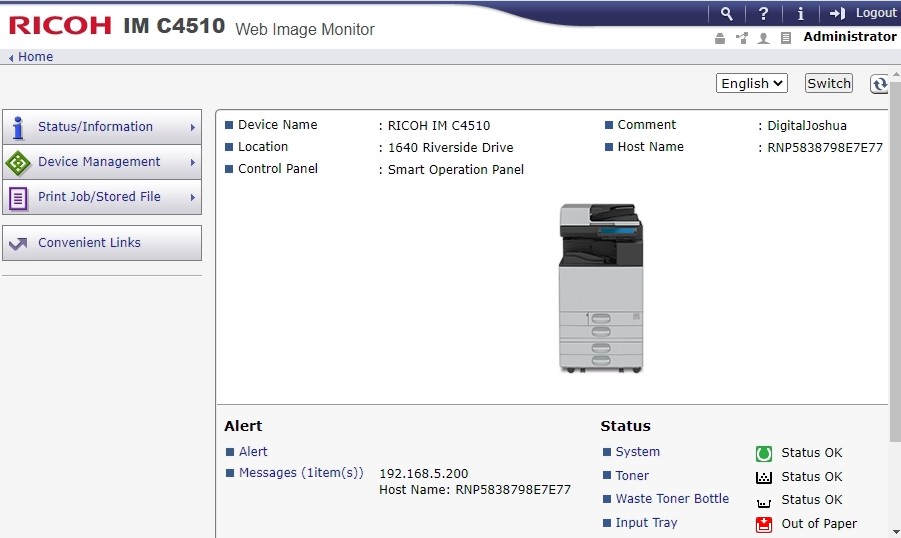
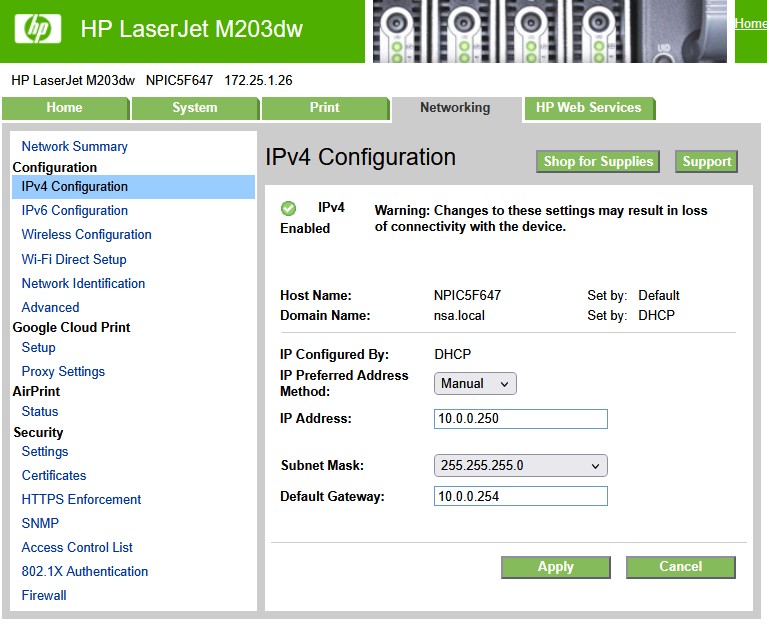
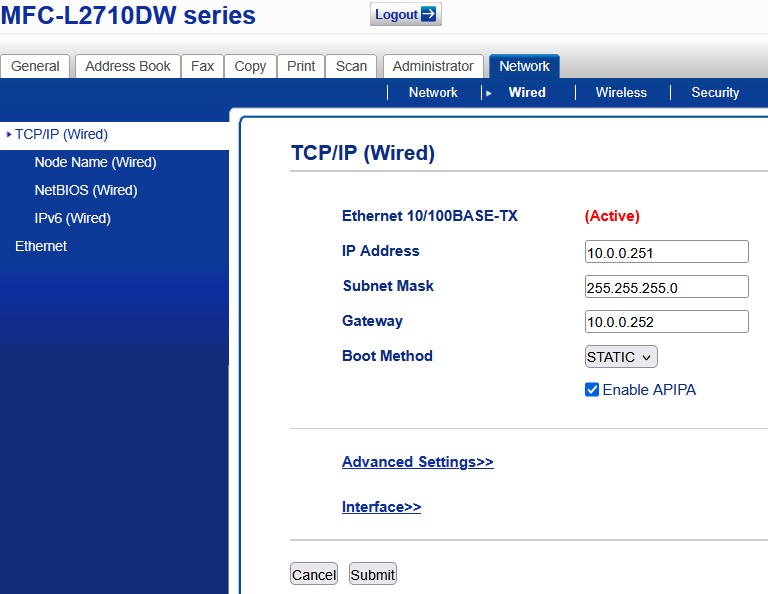
Nothing will beat a dedicated USB or special type of cable (if your printer offers that option). If you go for the network option, a Static IP is a must, as any port you use, will always point or look for that IP Address in the network. Most printers have a Web Server or page that you can go directly to and configure this. Once you get the printer connected to the network, print a network report or run an IP Scanner to obtain the IP address. Type in this IP address (Ex. 192.168.1.50) in your web browser to get to the configuration page. You will need the admin password, which you can usually find online (many times the printer will have a sticker behind or under the cartridges access door with this info) – Here are some examples of printers being assigned a static IP:
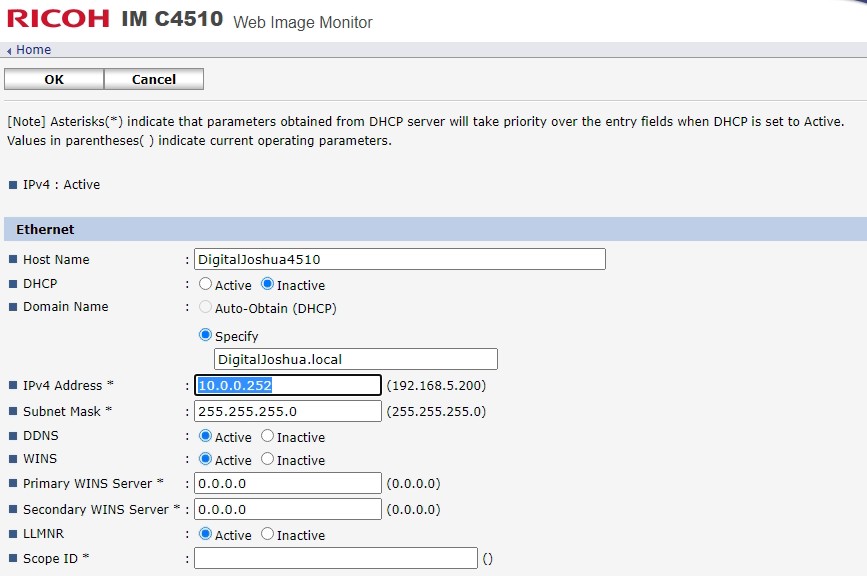

Using the correct Network Protocol
Most printers have a several options, but unfortunately many Operating Systems such as Windows, default to automatically installing and configuring WSD, which is a very unstable protocol known to disconnect randomly. So let me show you the most effective way I have found to properly setup a printer over the network.
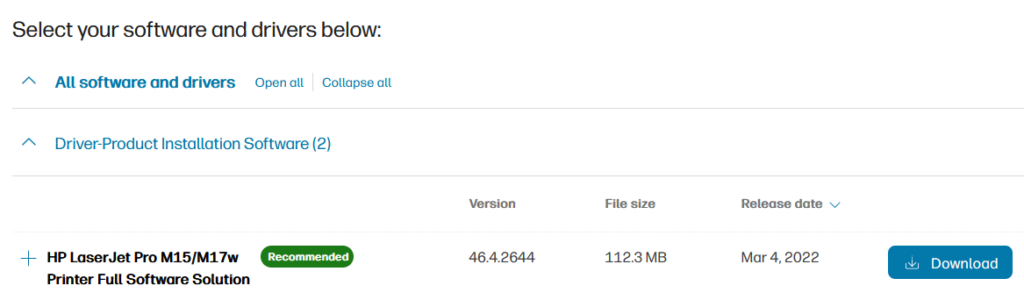
1) Get the latest driver directly from the manufacturer – Once you have setup the Static IP, go to the Printer’s support page and download the latest Full (offline if available) Software/Driver. In this example we will setup an HP LaserJet M15w.
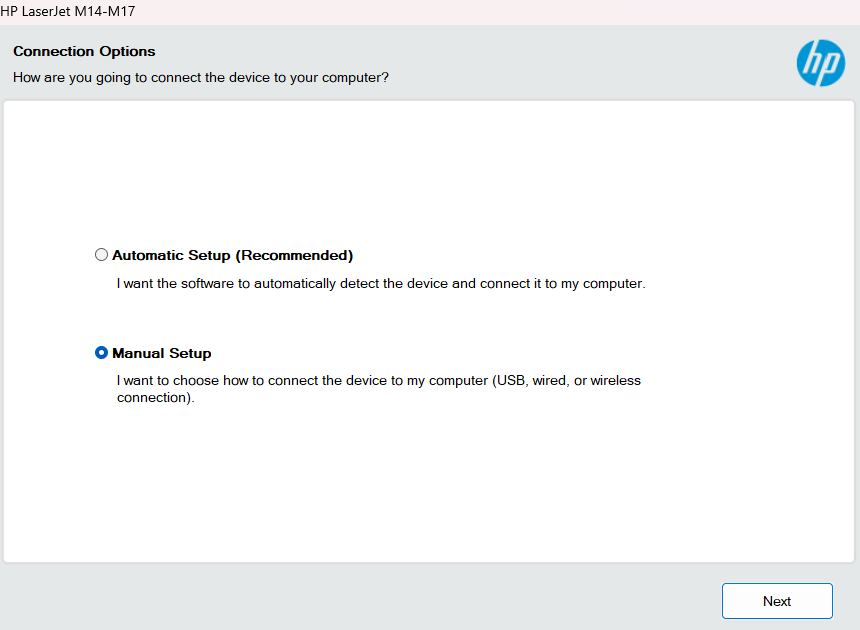
2) Run the setup in Manual/Custom Mode – Select the option for the Manual or Custom Setup – even though this is HP, most Manufacturer’s allow you these options during setup:
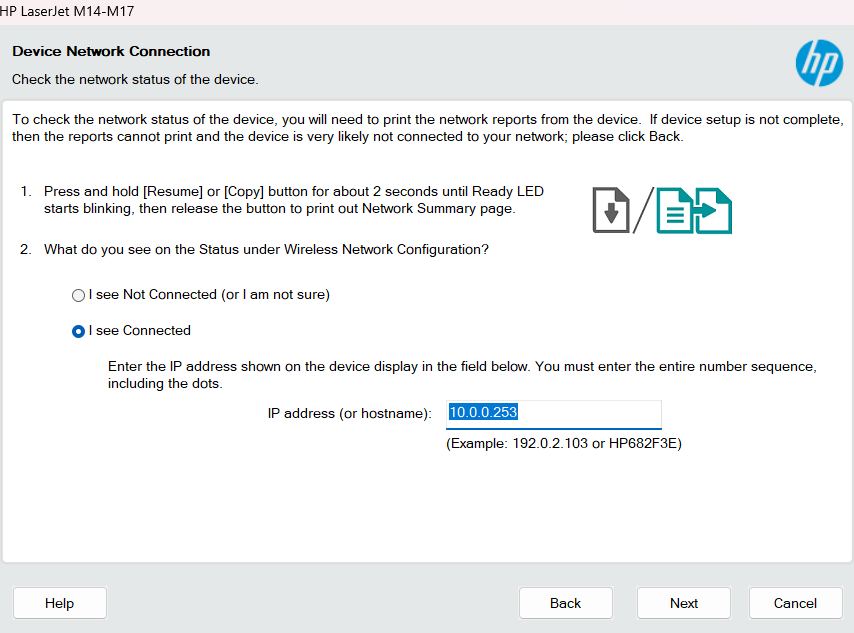
My only choice here is WiFi which was completed in the 1st step above – As an example I assigned IP 10.0.0.253
3) Confirm the use of the Standard TCP/IP port – Once the setup has completed and you review the printer properties, this is what you want to see – which is your printer, setup with a Standard TCP/IP port, on the Static IP you assigned it:
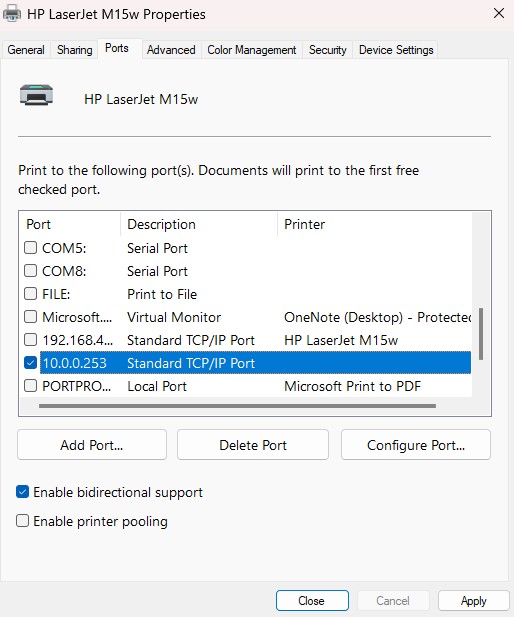
Using TCP/IP helps in two ways – It’s a known protocol across ALL Operating Systems, and you don’t risk your WSD or specific printer protocol being blocked by your Firewall. A TCP/IP connection to your printer will never (at least I’ve never encountered it in decades) be blocked by a Firewall.
A quick note on this:
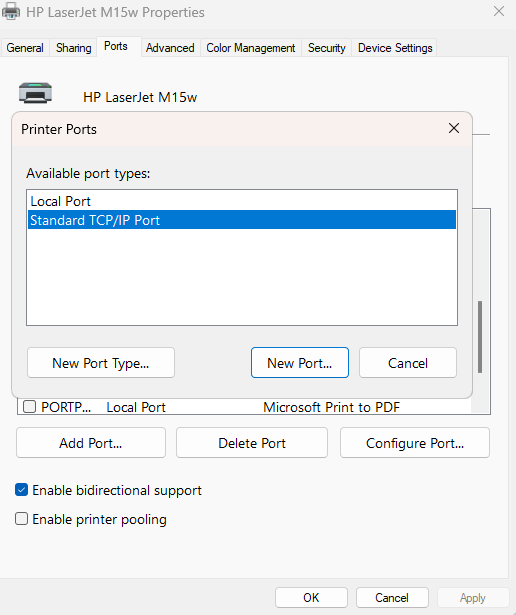
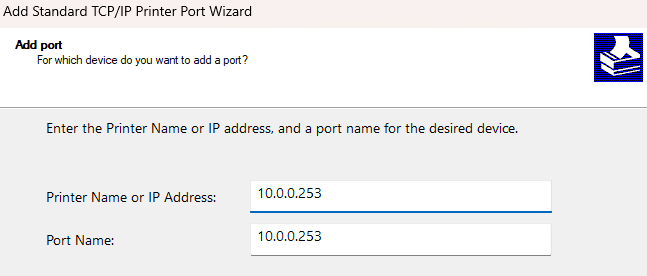
- Using the Manufacturer’s Drivers/Software is highly recommended but not always the best solution. In some cases, you may be working with an older printer with no updated Software, so Operating Systems will install generic drivers which work just as well. This can be considered, but make sure WSD is avoided and TCP/IP is used. If you do not see this in the Printer’s Port Properties – click Add Port, Select TCP/IP, type in the address and manually add a TCP/IP Port yourself (see images below).
What if my Printer does not have a network connection?
You have several options:
- Purchase a Print Server – This device connects to your printer using a USB connection and adds it to your network. They usually have built in network or WiFi cards, and also a Web server with a configuration page for you to add the device to your network. Also, if you have a very old printer which you love, this is a great way to get it on your network.
- Connect the Printer to another PC and Share it on the network – This requires more work, but it’s very effective. You may already have another PC in your office or home, to which you can connect this printer, and use it’s WiFi or LAN connection to share the printer on the network. You can also purchase a Mini PC and turn it into a print server.
- Check your Router or NAS Device – Many Routers and NAS devices include built-in print Servers. You can plug in the printer to this device and share it on the network as well.
Optimizing Network Settings
Although we used TCP/IP in the steps above, Printers have many protocols which still run in the background, even though they are not used. For example, an iPAD may use AirPrint, IPP or Bonjour. However, all these protocols make quite a bit of noise on the network and also use resources such as memory, as they stand idle listening for traffic. When I understand a client’s printing needs, or if I am installing a printer where I know which protocols will be used, I disable the rest – here is an example of what this looks like below for a small printer (LaserJet M203dw) and enterprise printer/copier:
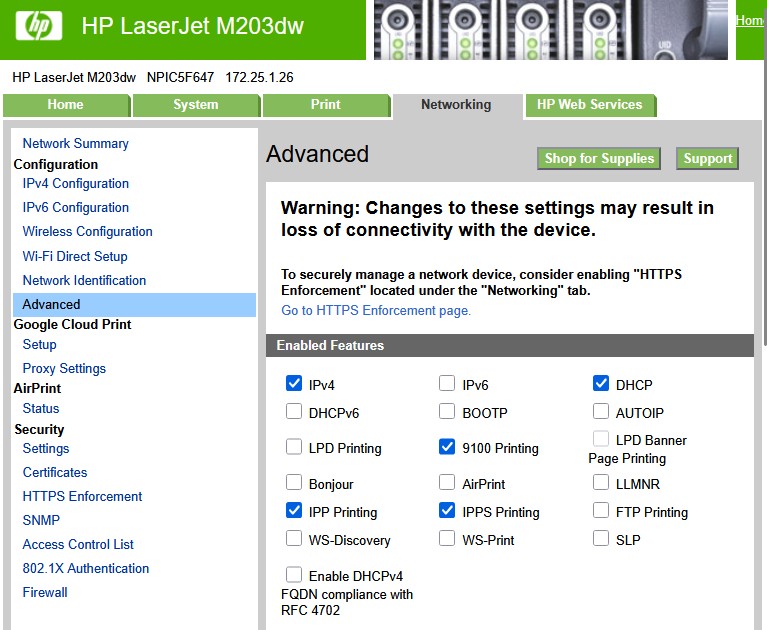
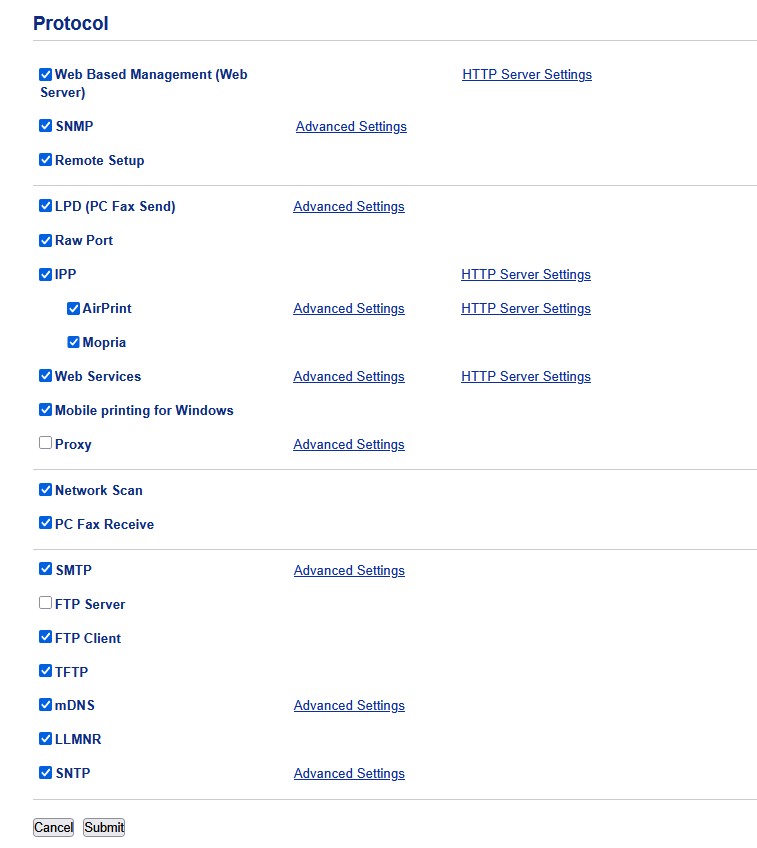
Warning: Please make sure you know what you are doing before disabling any protocol. Research your devices and what they use for printing and go from there.
Genuine or After-Market Ink Cartridges and Toners
The most accurate answer for this is: Depends. I’ve purchased after-market toners and fusers for small Brother Laser printers and these have worked well. On the other hand, after-market or cloned ink cartridges for an HP printer caused the genuine cartridges to no longer be detected and the printer had to be discarded in less than a year.
My conclusion is that it is in fact a risk, and although I may do it for some residential clients, I have decided to never try this commercially, where printing is critical and losing printing hours could noticeably affect productivity. You may save some money at the beginning but you are in fact introducing a risk to the health and longevity of the printer.
More tips for a better experience and headache prevention
The following is a list I have compiled in the last two decades, which aid in the prevention of printer problems and creating a more pleasant experience when it comes to Printing:
- LAN/Ethernet is King – Whenever possible go this route. You will have a device that you will be able to access on the network by any other device connected physically or through Wireless. USB Cables are a great option if you need a printer off the network or want to make sure nobody else has access to it.
- Use High Quality cables – Whether you go the USB or Network route, make sure to use the best cables you can find. More than enough times I have been on-site to solve a problem to come across an extremely thin USB cable with bad connectors.
- Protect your Printer – Check your outlets and make sure you have clean power going to your printer. Also protect Laser Printers with the proper heavy duty surge protectors, and inkjet printers with UPS Battery backups. The parts and electronics in these printers can easily fail due to incorrectly wired outlets, dirty power or electrical noise.
- Make sure your WiFi connection is solid – I am not saying that you can’t have 100% success installing and using a printer through a WiFi network – My HP LaserJet M15w has never failed me in more than 6 years – but there are more things to consider than just WiFi signal strength. Newer routers for example mix the WiFi Bands (2.4 GHz, 5 GHz, 6 GHz, etc) and some printers will not connect to this. Also, newer Routers from ISPs such as Spectrum can automatically block some of the Plug and Play protocols implemented by printers. In many cases, sending a large 50 MB PDF to a printer with a weak connection would cause stuck print jobs – needing to be cleaned manually – See here.
- Know what you are getting yourself into – Research the printer 1st, read reviews, check the manufacturer’s website and look at the knowledge base and updates. These will help you determine if you are buying a good quality product, a problematic machine, or a great machine that has terrible reviews because nobody bothered to apply the firmware update that fixed everything.
- Update the Firmware and Software if available – Make sure to check for updated drivers and Firmware updates as well. Many times these updates enhance printing functions, fix bugs and make the printer compatible with more technology. See here for my article on this topic.
- Don’t ignore Warnings – If your printer is complaining about a dirty waste toner box, incompatible cartridge, alignment, low ink, or lack of maintenance, then don’t go a long time ignoring these warnings. Research what needs to be done and take care of it. Also understand, that printers do suffer from wear and tear such as overused rollers, ink cartridges, ink carriages, electrical contacts, worn out wheels, paper trays, etc – That’s why it is important to read reviews from those owning the device for more than a few years.
- Make sure you are using the correct paper – I cannot stress this enough. Printers DO have paper requirements and many of the paper jams I have solved point to using the incorrect paper weight or finish (glossy, matte, etc).
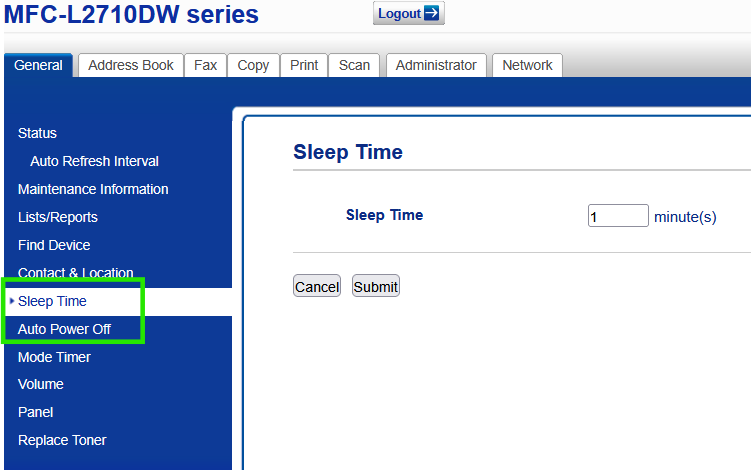
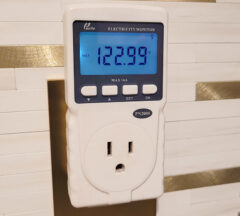
- Analyze Standby and Energy Settings (see pic below) – These settings can cause many problems. Some printers may show as offline in the operating system because it cannot communicate with them, yet the printer is just in standby, not off. In some cases I have had to force the printer to remain on 24 hours a day, which is not really a problem because they barely use any electricity when idle.
- Be willing to try different things – If you installed the printer a certain way and it’s not working as expected, then try something else:
– If you installed with USB, try switching to a Network Cable or WiFi.
– If you installed automatically using Windows, uninstall and try using the Manufacturer’s software/driver and vice versa
– If you installed and are using WiFi, try using a USB or Network Cable
– Try downgrading (download older software) the Printer’s driver/software if the latest one is giving you problems
– Test the printer in another Operating System such as MacOS, Ubuntu or Linux Mint if you are having problems. I’ve seen many printers thrown away and all along the problem was the OS, not the printer. - Learn how to Factory Reset – Many printer errors or bugs can be cleared out with a factory reset. It’s important you learn how to perform this procedure on your printer in case you ever need it. This procedure also helps you recover the admin password for the web configuration page. See an example here.
- Understand Limitations – Don’t buy a Printer expecting a miracle. ALL printers come with very clear specifications including the ink cartridge or Toner printing capacity. I always recommend most people get an All-In-One device with minimum the following features: a) Double sided printing b) Automatic Document Feeder c) Scan to Email or PDF
- Understand Cost Per Page – Many consumers just buy what is the cheapest, but in the end, especially with the high cost of toners and ink cartridges, it can be more expensive depending on how much you print. Upgrading to a small Laser printer by paying $60-$70 more may be more cost effective than a small $35-$45 inkjet printer whose ink refills cost over $50.00. There’s also refillable ink printers, which are sold by Canon, HP, and Epson.
Ink cartridge average cost per page: $0.02 – $0.30
Laser Toner average cost per page: $0.03 – $0.15 - Lower your Printer’s mileage – As irrelevant as this may sound, it is actually a solution, especially in today’s world. I’ve worked with paperless hospitals, and I’ve also completely eliminated printers in households with just implementing a PDF Printer. It can be done, but it takes dedication and knowledge of backing up your files. The point is, the less you print, the less your mileage will be and the less chances of problems…so…
– Install a free PDF Printer (Included with Microsoft Office) but there is also PDF24 and CutePDF Printer. You can split and merge PDF files for free with PDF Split & Merge
– Instead of printing and saving your records, scan them in to a PDF and save a copy on both your PC, a Flash drive and/or Google Drive, OneDrive, etc.
– Learn how to use your camera’s phone for saving documents; you can then send these through email
– Implement paper-free billing for both your bills and payments – Use applications such as Zelle, Venmo or your Utilities online portal to send in payments instead of printing the bill and putting it in the mail with a check.