box slider
 fullwidth slider
Warning: The 3-2-1 Backup Rule is not enough
- Home
- Solution
- Technology Consulting
- Warning: The 3-2-1 Backup Rule is not enough

I’ve started participating more in providing free tech support online, whether it be in Forums or Reddit. Back in the early 2000s, I had started my own forum which racked up more than 4000 users worldwide. One thing that immediately caught my attention, is the amount of detail that is lost in most modern responses. A lot of the responses or advice I read is very generic, and leaves the user without a clear understanding of what they are about to do online, or to their computers. One of these topics is the 3-2-1 Rule or Backup Strategy. It goes something like this:
You need to have 3 copies of your data,
on 2 different media types,
in at least 1 different location.
As an example, and as shown in this post’s diagram, your PC’s Hard Drive (preferably an SSD Drive) will serve as the 1st copy. To which you then synchronize/backup to an External Drive as your 2nd copy, which based on price, is usually a spinning Hard Disk Drive. Finally, for your 3rd copy, you backup offsite. This could be Tape or a drive you bring in and plug into your PC and copy your data to, then store at a relative’s house, your office, a Data Center, or you use a Cloud application such as iDrive, OneDrive, Carbonite, Google Drive or iCloud for this 3rd copy. However, based on all the follow-up questions and the misinformation published on this strategy, many users don’t ever think about the pitfalls in performing all of these processes themselves, and which Enterprise Backup solutions such as VEEAM, Acronis, ShadowProtect, Cohesity, Altaro, Datto, etc., have you pay extra for fail-safe features that never cross their minds. In most conversations online about the 3-2-1 rule, the following is usually left out:
- Encryption
- Data Verification
- Data Synchronization / Replication
- Archiving
- Offline/Air-gapped backups
As of 2026, I have sent close to 50 drives for emergency recovery of data that was lost due to lack of consideration, or implementation of the list above. As briefly as I can, and with a minor example, let’s go through the list.
Encryption
Making copies (or backups) of anything creates a solution and a problem.
The solution: You will have two or more accessible copies of something. Think of that house key copy you made and is under the rug.
The problem: More copies means easier access for others. So each copy must be protected in some way. This can be done with Encryption. If you are using backup software, there is usually an option for encrypting the Backups, but you should also encrypt the drives that store your data if possible.
Click here for Encryption in Windows
Click here for Encryption on MacOS
Example: You implement the 3-2-1 rule; your 3rd copy is located on a flash drive, you finish a recent backup and head to the office, but you accidentally drop it in the parking lot and somebody finds it. This data is now accessible to this person, and in many cases, the entire Internet.
In another example, if somebody breaks into your house and steals your main PC (1st copy) and your attached external drive (2nd copy) – if these drives are not encrypted, then this person will have access to all of this data.
Important: Pay close attention to all of the instructions for the Encryption strategy you use. If implemented incorrectly, or you forget/lose encryption keys, you may never be able to recover your Data.

Data Verification
The next topic is just as important – if you created a a copy of your front door key, do you just accept that it works, or do you actually go and test it? The same applies to backups or the copying of data to any type of media, regardless of how reliable it may be. I keep seeing SSD (SATA/NVMe) drives being praised for their stability and reliability, but these drives are just as capable as any other type of media at failing, or corrupting data because many processes and applications can fail at writing or reading the data properly.
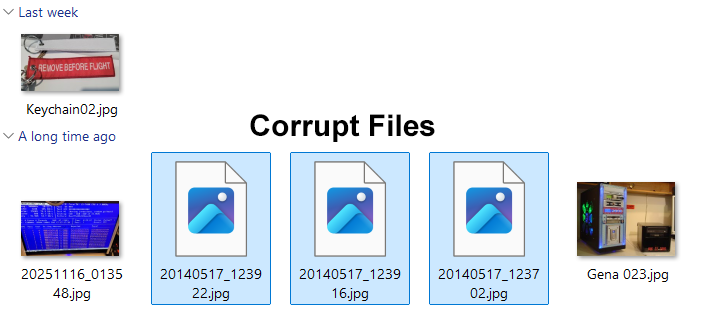
In the following folder for example, there are 6 jpeg images that were synced from an SSD SATA drive to Google Drive. I worked on this PC because the Google Drive application failed to open and had to be reinstalled – in the process, I discovered that only in this particular folder, out of thousands of images and files, 3 images had become corrupted – possibly due to an incomplete sync.
Data verification or integrity checks are usually part of backup applications such as Veeam or Acronis TrueImage, or, if you only do direct file copies or synchronizations with application such as FreeFileSync, you have to make sure to enable all advanced settings when it comes to file comparison. This will increase your chances of finding corrupt files, or files whose properties have changed during the file backup process.
Integrity and File verification can be done manually using Checksums. This WikiPedia article has more information about verification, and this article has more information on Checksums/Hashes.
There are many Utilities online that help you verify the integrity/hashes of a file that was copied from your 1st, 2nd or 3rd locations. These tools look at the hash file from the 1st location, and compare it to the 2nd or 3rd. Below is an example using the application HashMyFiles and comparing the MD5 and SHA1 hashes of two files in separate drives – in this example they are identical which means no file properties changed when the file was copied from the D: drive to the E: drive

Data Synchronization / Replication
So you’ve chosen the 3-2-1 strategy; you’ve accepted to copy and maintain the exact same data on 3 different devices – so how will you accomplish this?
Important: Synchronization is a big contributor of Data loss. If you don’t have a plan in place, you may end up overwriting or deleting files by mistake.
If you are using a simple file sync method with a tool such as FreeFileSync – it’s easy to just perform a sync from your 1st drive to your 2nd and 3rd drive. Using the Mirror setting, FreeFileSync compares all of the files one your 1st drive, and copies or modifies only those that have changed, saving you a lot of time. If you are using a backup application, such as VEEAM or Acronis TrueImage, you also have to synchronize your Backups, and you can do so with their suites that include replication tools, such as VEEAM Backup and Replication. When setting up your main Backup Job, VEEAM has a section for Secondary Targets, also known as Backup Copy jobs. These backup copy jobs will make a copy to your 2nd and 3rd Drives and you can also setup verification for each one of these jobs.
It is up to you to know and keep track of the dates of your Backups. For example, let’s say your last Backup to the 2nd Drive was today – 01/17/26, and your last backup to the 3rd Offsite Drive or Cloud backup was 12/17/2025 – If you were to lose the 1st and 2nd drives in a theft or accident, you would lose 1 month of data. But there is another hidden danger, which we address in the next section with Archiving.
Archiving
I’ve personally never seen this important item mentioned anytime the 3-2-1 method is talked about. With HDDs being cheap, there is no reason you should not be able to see what your Data looked like 6 months or even 1 year ago. For many of my clients and including myself, this has been a life saving tip.
Example:
In January, March, and May you travel and come back with tons of pictures and videos of several trips.
In June, you decide to review and delete repeated or blurry pictures/videos.
Before deleting anything, you make a Mid-Year Archive backup copy of your entire computer. You then proceed to clean up these trip folders and files as originally planned.
In August, you update your 3-2-1, and make backup copies to your 2nd and 3rd Drive/Cloud Drive.
In November, during a family gathering, you are asked about a specific site in one of your trips. When you look for the picture, you realized you accidentally deleted it by holding Shift instead of Control when selecting multiple items for deletion. You look in your 2nd Drive and 3rd Drive (or Cloud Backup) and they are also gone. This is because in August you synced everything from your 1st Drive (main) to your 2nd and 3rd, which eliminated these pictures there as well.
This is where your Mid-Year Archive copy comes in handy. Since you knew you were making significant changes to the files on your PC in June, you made a 6-month archive copy that allows you to restore files all the way back to June.
For several clients, I have implemented 1 and up to 6 year archives, which in some industries is mandatory. The 6 year archive prevented a long, very expensive process of obtaining a legal document after a Doctor’s retirement. 4 years after he left the practice, the Document was recovered from the Archive and used to evaluate and complete a procedure.
Personally, for most home users, I think 1 year is enough, but nobody knows your patterns better than you. My recommendation is to have a 6 month (updated every 6 months) and 1 yr archive (updated yearly). If you cannot afford that many drives, then at least create archives of your most important files, such as family pictures, design files, or files that have to do with your Business.
Important: Archives MUST be kept in very specific conditions which are discussed in the next section: Offline/Airgapped.
Offline/Air-gapped Backups
In reading the many opinions of the different 3-2-1 implementations, “protecting” these backups is also never part of the conversation. I have seen users with a perfect plan, 1st Main NVMe Samsung Pro Drive, 2nd Drive in a NAS inside a locked room, and a 3rd copy done by a Cloud Service. This setup running perfectly for years, until they get hacked or infected with ransomware. The problem with most talks of the 3-2-1 is that all of the media is somehow interconnected or accessible by your PC.
Example:
Your main/primary drive is an NVMe drive in your PC
You backup to an external Drive, either connected through USB or a NAS
You also replicate the Data to iCloud for your 3rd and offsite copy.
The problem: If your computer is hacked or gets hit by ransomware – Your PC will usually have access to all three sources of Data which will also be deleted or encrypted.
To solve this problem, your can create an extra copy of your Data that is completely unplugged from any network or device, kept at a different location if possible, and also inside a fireproof, waterproof and locked safe or location. There’s even fireproof bags which can be used for extra protection. This could be an External USB Drive that you plug in, dump a copy on, then unplug it and safely store it. This drive never gets plugged into any computer unless you are ready to update the files on it; as soon as you are done, immediately remove the drive. In some cases I have even seen users put their PCs offline and scan for viruses before plugging in the drive as an extra precaution.
Conclusion
I think this post makes it clear why the 3-2-1 Backup Rule points you in the right direction, but more tools, processes, effort, and knowledge is required on the User’s part to fully protect themselves from data loss. This is more than just copying and pasting data on different drives. So in conclusion, the modified 3-2-1 should like look this:
3 Working/Active Copies of your Data with Encryption, Verification and Synchronization
2 Different media types – SSD NVMe/SATA, HDD, Tape, USB Flash Drives or External SSD/HDD
1 Different Location – Office, Relative’s house, or Cloud software (Google/OneDrive, iCloud)
* An extra layer of security can be added if this copy is kept offline and ONLY brought online when updating/synchronizing the backup
1 Six Month Archive – Kept Offline
1 Full Year Archive – Kept Offline
Bonus Material
- Read about the highly recommended Immutable Backups
- If a NAS drive is your choice for your 2nd data copy, try to place the NAS as far away as possible from your PC/Main Drive. If you live in a 2 story house, place it on a different floor than your main PC. In case of a fire, this tip increases the chances of one source of Data surviving. If you can place the PC or NAS behind a secure locked door, this is even better.
- If you are a power user and always need your Data available, consider using RAID in your PCs or NAS Devices. Even Windows’ Software RAID 1 is extremely reliable, and allows access to your files even if one Drive fails. Always remember that RAID is not an alternative to Backups, it is only meant to keep a system online and data accessible in case of Drive failure.
- Test your backups frequently. Extract files from your compressed Backups if you use Backup Software and randomly test files with an application such as HashMyFiles. You can use applications such as FreeFileSync to make sure all of your folders and files are identical in all of your storage media.

Recommended Hardware Devices
- Silicon Power 256 GB NVMe
- Silicon Power 500 GB NVMe
- Silicon Power 500 GB UD90 NVMe
- Kingston 500 GB NVMe
- Samsung 990 Pro 1TB NVME
- Slicon Power 1TB NVMe
- Kingston 1TB NVMe
- WD Black 4TB NVMe
- Seagate Barracuda 2TB SATA HDD
- Seagate Skyhawk 4TB SATA HDD
- Western Digital Purple 6TB SATA HDD
- Seagate Barracuda 8TB SATA HDD
- Seagate IronWolf 8TB SATA HDD
- Western Digital WD RED 10TB SATA HDD
- Seagate IronWolf 16TB SATA HDD
- SSK 250 GB USB Portable SSD
- SSK 500 GB USB Portable SSD
- Crucial 1TB USB Portable SSD
- Sandisk 1TB USB Portable SSD
- SSK 1TB Portable USB SSD
- Crucial 2TB USB Portable SSD
- Sandisk 2TB USB Portable SSD
- SSK 2TB USB Portable SSD
- Sandisk 4TB USB Portable SSD
- Crucial 6TB USB Portable SSD
- Crucial 8TB USB Portable SSD
- Sandisk 8TB USB Portable SSD
- Seagate 2TB External USB HDD
- Seagate 4TB External USB HDD
- Seagate 5TB External USB HDD
- Western Digital 4TB Elements External USB HDD
- Western Digital 8TB Elements External USB HDD
- Western Digital 14TB Elements External USB HDD
- Seagate Expansion 20TB External USB HDD
- Seagate Expansion 24TB External USB HDD
- Western Digital 24TB Elements External USB HDD
- Western Digital 26TB Elements External USB HDD
- Buffalo NAS Device
- Synology NAS Devices
- UGREEN NAS Devices
- QNAP NAS Devices
- Sandisk 16 GB Ultra Flair USB Flash Drive
- Sandisk 32 GB USB Flash Drive
- Samsung 64 GB USB Flash Drive
- Samsung USBC 64 GB Flash Drive
- Lexar USBC 64 GB Flash Drive
- Sandisk 64 GB USB Flash Drive
- Lexar 2 Pack 128 GB USB Flash Drive
- Amazon 128 GB USB Flash Drive
- Amazon USBC 128 GB Flash Drive
- Samsung FIT 128 GB USB Flash Drive
- Samsung 256 GB USB Flash Drive
- Samsung USBC 256 GB Flash Drive
- Amazon USBC 512 GB Flash Drive
- Samsung 512 GB USB Flash Drive
- Samsung FIT 512 GB USB Flash Drive
- Sandisk 512 GB USB Flash Drive