 box slider
 fullwidth slider

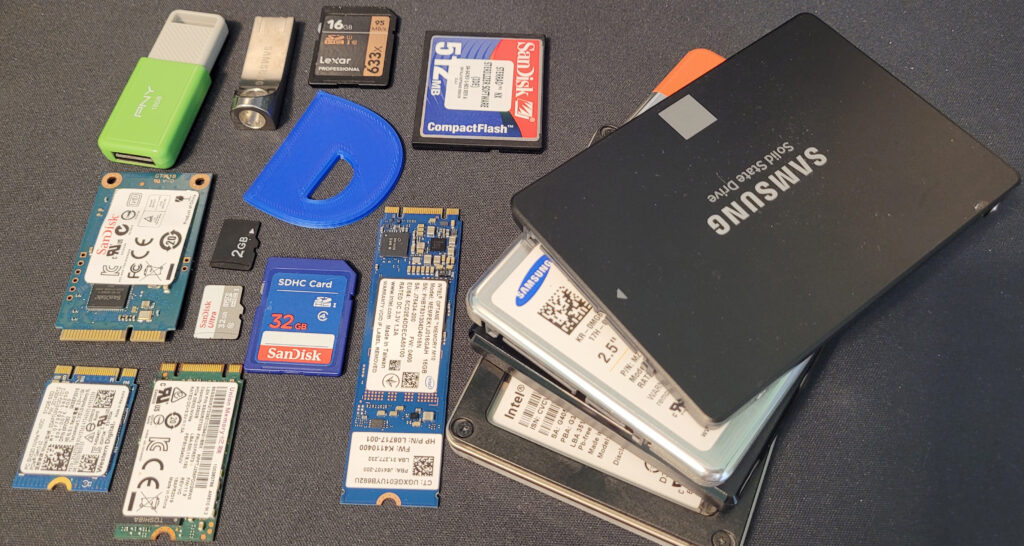
After understanding the complex process of Data recovery beyond the capabilities of anybody with a Homelab, DigitalJoshua has teamed up with a reliable company achieving a 95% success rate in all the recovery jobs I have requested. Data Mechanix has been my go to for over 10 years for both my residential and commercial clients. They have been able to recover data from Enterprise and regular Hard Drives, Flash Media (SD, MicroSD, CompactFlash, USB Flash Drives, etc.) and also SSD – SATA and M2 /NVMe Drives.
| Receive a discount by mentioning Coupon Code: DIG10 They can be contacted here or call: 800.886.2231 Note: Data Mechanix does not bill unless they recover your data. |  |
Data Recovery Journey
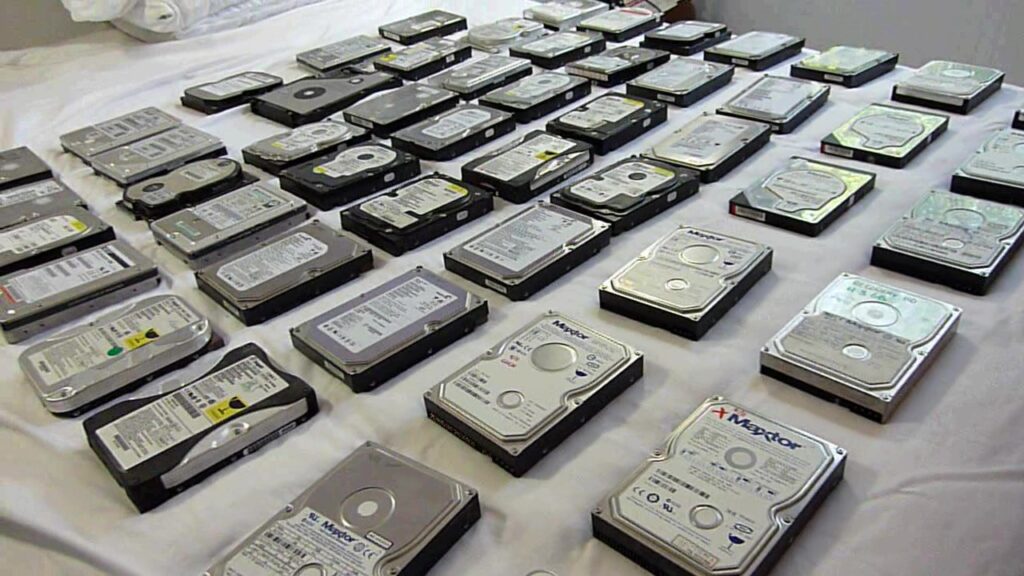
My first serious data recovery job came around 2004, when a client had referred me to a lady whose husband had passed away in a motorcycle accident, and their only wedding/life pictures were on a PC that would not power up. Immediately you realize, that for proper data recovery, you need tools such as diagnostic software, external USB enclosures, extra SCSI/IDE/SATA/SAS/NVMe ports on a computer, and a lot of patience. The recovery was successful – but it sent me off in a direction where I started to study failed hard drives. In the process, I published one of the 1st videos showing how a hard drive works with no cover – the now famous hard drive video went viral.
How to properly prevent Data Loss
Many people don’t comprehend the concept of taking something physically, such as a developed photograph or scanned-in document, and creating a virtual file that now exists only on a computer. Even before you owned a PC, you understood that all electronics can fail – either after being used for years, or fried in a lightning strike or surge. But there are other factors that most users don’t think about – Data corruption, theft, and accidents (dropping, losing, spilling water, overwriting files, etc.). So in the world of Data, the only option you have is to make a copy, and not just any copy, but follow a plan that will cover all of these situations you can’t think of. The most common one you will see talked about the most is 3-2-1 Backup plan, which I wrote an article about here. Following a plan like this will give you a high guarantee that you will not lose data.
Your Drive or USB Media is failing or has failed…now what?
There’s multiple things that can indicate that your Main drive or USB Media is failing:
- S.M.A.R.T Errors – You may see these a few seconds after you turn on your PC. A monitoring tool is built into Hard and SSD Drives and in many cases can predict a failure. This in my opinion, is not very reliable and should not be depended on to prevent any data loss. Any media can fail at any moment without any kind of notice.
- Sounds – Some failing devices such as Hard Drives can make a clicking sound, a loud beep, or even a buzzing sound. If you can hear any type of sound when plugging in the drive, inspect further and if the sound continues, disconnect immediately. Here is an example of a click of death with beeps.
- Drives don’t show up in Explorer – You plug in a USB flash drive, or have a secondary internal drive attached to a SATA or NVMe port, and they are not showing up. It’s always recommended to try a different port, but if the drive does not show up, it’s possible an electronic failure may have occurred. In some case the drive may show up, then disappear, and then show up again.
- Files don’t copy or paste completely – When copying files to and from this drive, the process may stop, and you may be presented with an error – such as A Cyclic Redundancy Check (CRC) error. This may indicate the OS is not able to read parts of the drive due to bad sectors or corruption.
- Error Logs – I always recommend you check your OS’s error logs at least once a month. Windows for example has Event Viewer, in which I have seen dozens of errors related to Drives that can go on for months yet the user is never aware of them.
- Computer Locks up or Freezes – This can happen with internal drives, external drives, or as soon as you plug in a USB Drive. The OS may freeze as it tries to detect the drive and load drivers for it.
- Wrong Partition Type – If you suspect problems and then load a partition management tool such as Disk Management in Windows, DiskPart or Gparted, instead of seeing your partition, you see Unallocated Space, or similar.
- Applications closing abruptly or Crashing – This may be an indication of a failing drive – Check error logs and see if they point to anything.
If the media storing your data has failed, Don’t Panic. It does not mean you have lost the Data, but there are very critical steps you must take if you want high chances of recovering your data:
- Understand that time is your enemy – The longer the drive remains in a failing or failed state, the lower the chances of data recovery.
- Keep Activity to a Minimum – If you suspect a problem, test the drive on a different port or PC to confirm – if the Drive does not come up or does so intermittently and you confirm the drive is about to fail, do not keep connecting it or trying to keep it online. Disconnect and send in for data recovery immediately.
- Do not open or alter the media – Do not attempt to pry open the enclosure of the drive or USB Media. Hard Drives will fail soon after you open the cover. With Solid State Drives or Flash Media, your risk damaging the electronics that will be needed in data recovery process to read the contents of the drive.
- Do not Run Checks or Diagnostics – Every second of life the drive or USB media has left needs to be spent recovering the data, and not further forcing it by checking its partitions and clusters.
- Do not attempt any physical repairs – If you try swapping out electronics boards, connectors or chips, you may completely eliminate the possibility of recovering data. It was somewhat possible in the past to replace a drive PCB Board, but in modern drives this is more difficult and requires professional facility.
Hopefully you had a backup plan in place, but if not, act fast. Contact me or contact Data Mechanix above.