box slider
 fullwidth slider
Garmin Avionics PC GDU Trainer Errors or Closing Unexpectedly
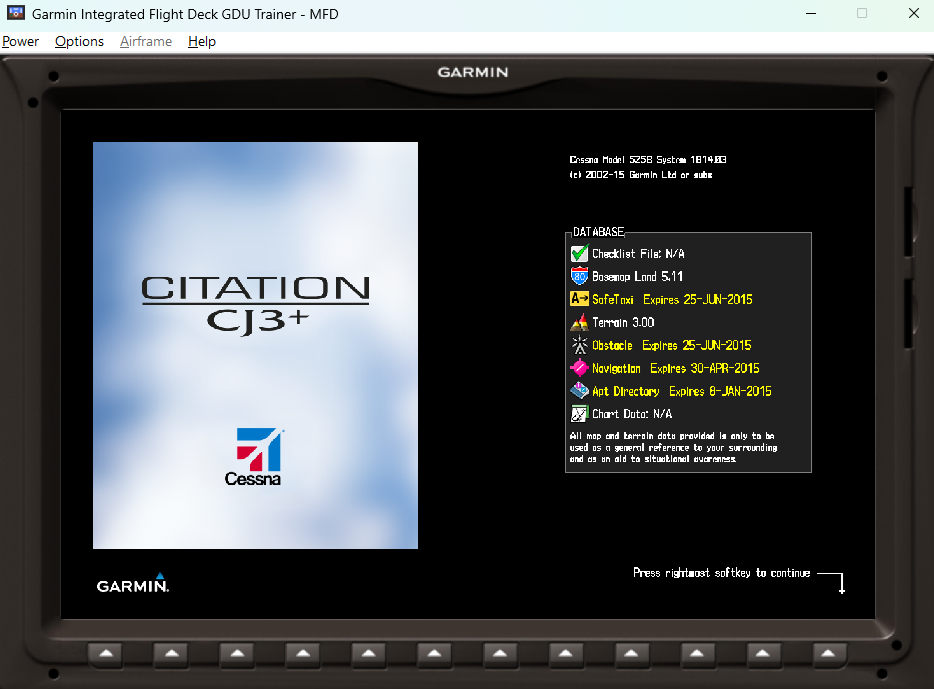
A while back I had posted about Garmin PC Trainers loading up with a Blank screen or not working correctly. These problems are caused by multiple things and although I had solved one of them by creating a Windows user profile with no spaces, I still came across other problems. In particular, when I powered on the GDUs (PFD, MFD) or GTC on the Cessna Citation CJ3+ PC GDU Trainer, the Windows would immediately disappear. Windows was also logging errors in Event Viewer:
Log Name:      Application
Source:        Application Error
Date:          12/30/25 11:29:15
Event ID:      1000
Task Category: Application Crashing Events
Level:         Error
Keywords:
User:          LETHE47R\DigitalJoshua
Computer:      LETHE47R
Description:
Faulting application name: GTCSimulator.exe, version: 0.0.0.0, time stamp: 0x55255e57
Faulting module name: KRNL_SIM.dll, version: 0.0.0.0, time stamp: 0x55255df5
Exception code: 0xc0000005
Fault offset: 0x000d4a99
Faulting process id: 0x7B10
Faulting application start time: 0x1DC79A95DEE83A1
Faulting application path: C:\Program Files (x86)\Cessna CJ3+ Trainer v5.10\GTC\sim\GTCSimulator.exe
Faulting module path: C:\Program Files (x86)\Cessna CJ3+ Trainer v5.10\GTC\sim\KRNL_SIM.dll
Log Name:      Application
Source:        Application Error
Date:          12/30/25 11:29:09
Event ID:      1000
Task Category: Application Crashing Events
Level:         Error
Keywords:
User:          LETHE47R\DigitalJoshua
Computer:      LETHE47R
Description:
Faulting application name: CDUSIMv2.exe, version: 0.0.0.0, time stamp: 0x55254e51
Faulting module name: KRNL_sim.dll, version: 0.0.0.0, time stamp: 0x55254dae
Exception code: 0xc0000005
Fault offset: 0x0011b569
Faulting process id: 0x7414
Faulting application start time: 0x1DC79A95DED82D8
Faulting application path: C:\Program Files (x86)\Cessna CJ3+ Trainer v5.10\CDUSIMv2.exe
Faulting module path: C:\Program Files (x86)\Cessna CJ3+ Trainer v5.10\KRNL_sim.dll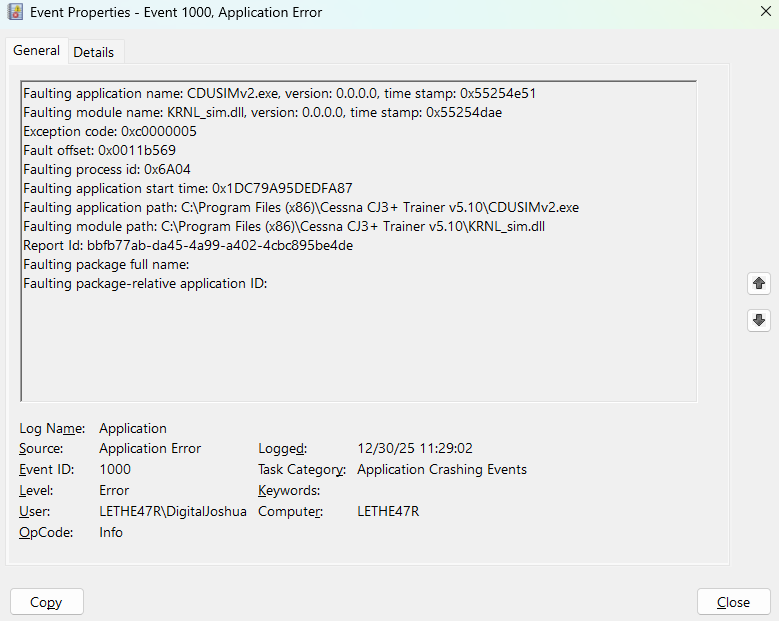

Even though I reviewed all of the steps from the previous article I mentioned, I decided to not just eliminate spaces from the user Profile, but from every folder possible – starting with the install path. Notice the amount of spaces in the default install path below:
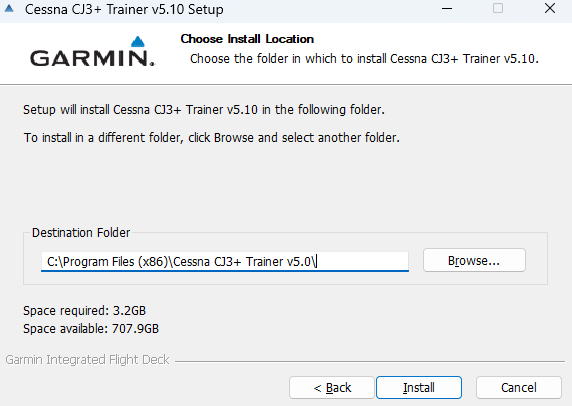
After switching the Install Path to just C:\CJ3 – The errors went away and everything worked as expected. It is recommended the username have Administrator rights on the computer as well.