box slider
 fullwidth slider
Right Click and Open with… freeze Computer
- Home
- Solution
- Technology Consulting
- Right Click and Open with… freeze Computer
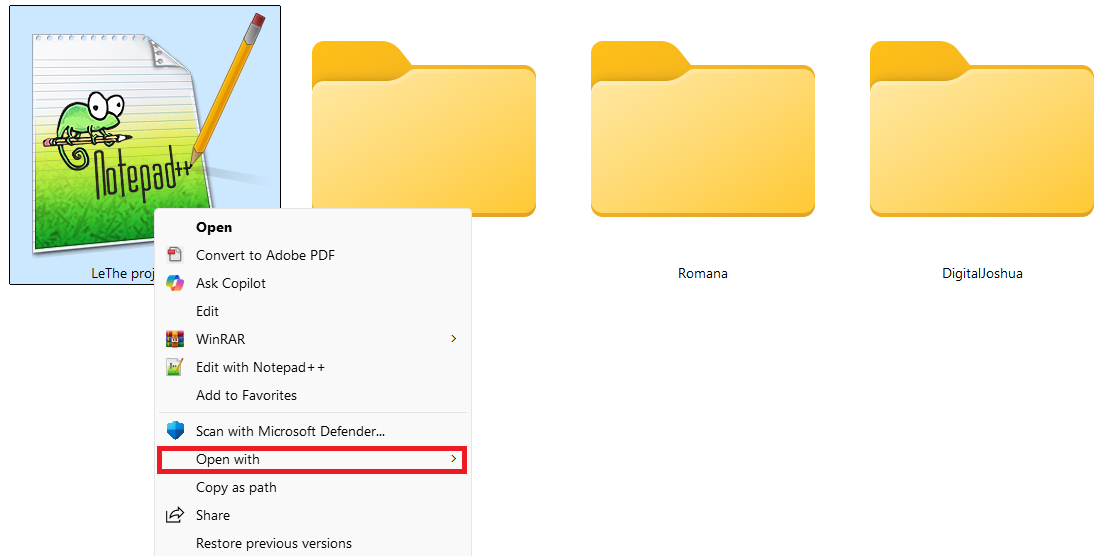
Many applications or programs create temporary files as well as Registry entries when opened. In some cases, if you open a file on the network, whether it be on a Server or NAS Device, this can create a problem once the Network path is no longer available. In this particular situation, right clicking a File or Folder to open up a Menu caused this Windows 11 computer to freeze or not respond for a few seconds. After the Properties Menu opened, if you hovered over Open With… the computer or the menu froze again for a few seconds. Obviously, there was something going on with the Properties/Open With…menu.
To analyze the problem, I used an application called OpenWithView to analyze the entries and noticed something unusual:
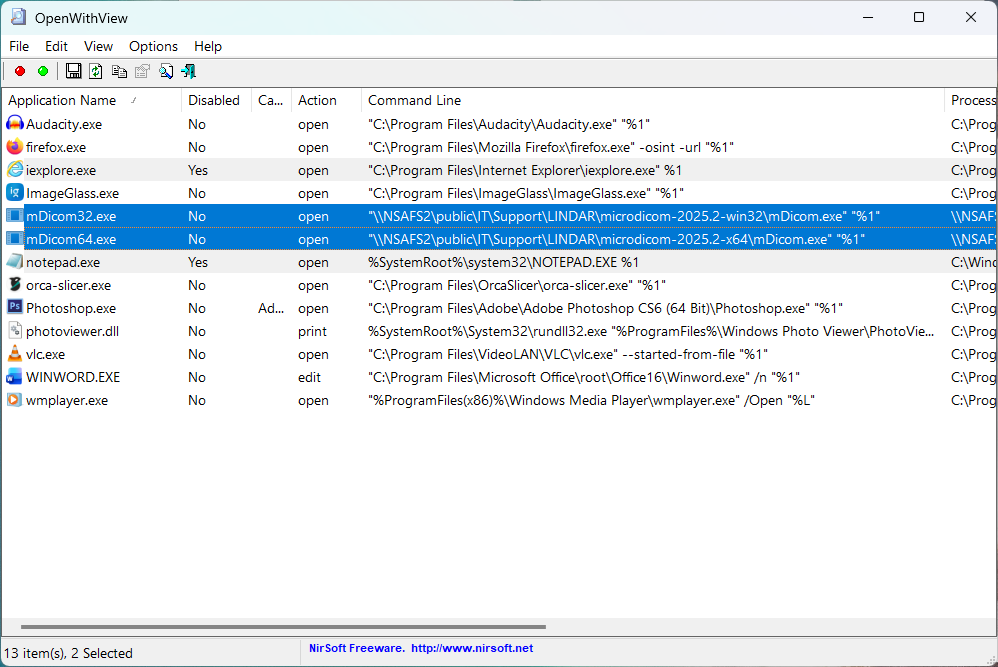
The application in question was used to open up a file on a Server and created registry entries in the Open With menu to this network Path – causing the problem.
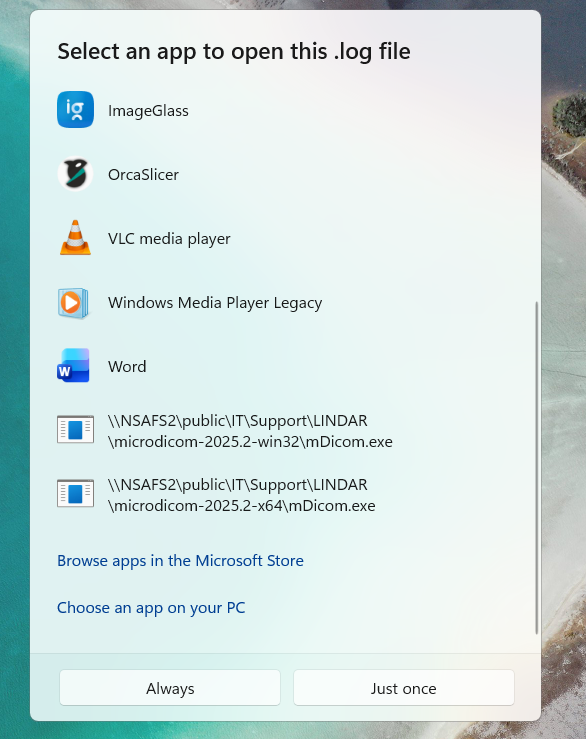
We can see the mDicom.exe application was added with the Network path \\NSAFS2\IT…etc – Which is a network path. Using the application OpenWithView, you can highlight the Entry, right click and select Disabled. This solved the problem, but I wanted to completely remove the entries in the Registry and clean this up to avoid any future problems. With the results from above, I now know to perform searches in Regedit for mdicom.exe, microdicom, etc, after first uninstalling the program if it installed, and restarting the computer to clean off any remaining registry entries. Even after the application was uninstalled, or if the portable version was used, these were the results of my searches in the Registry:
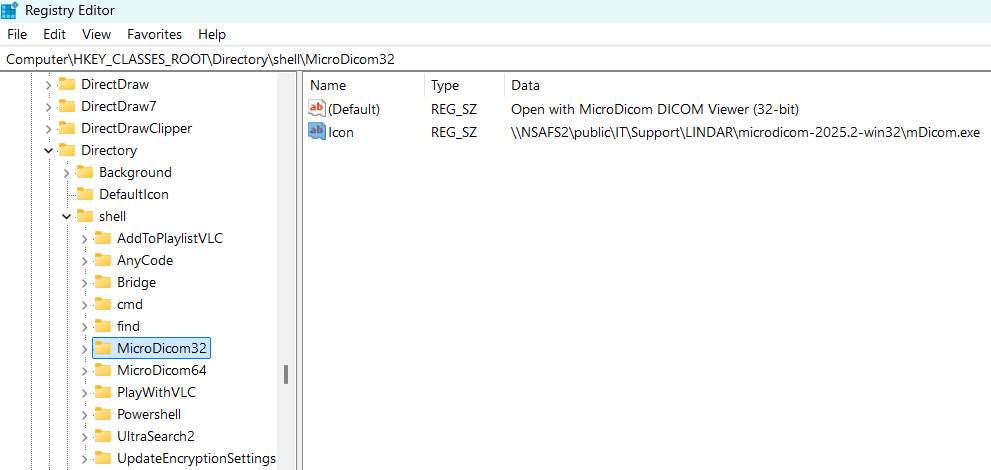
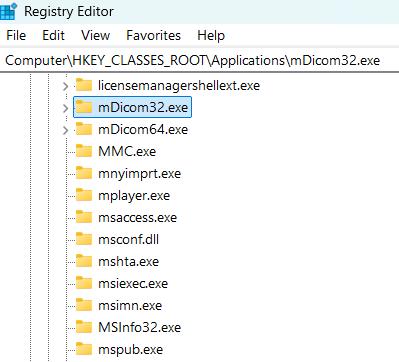
Many entries were found, and ultimately I found all of the following entries which I deleted.
[HKEY_CLASSES_ROOT\MicroDicom64.Application\DefaultIcon]
@="\\\\NSAFS2\\public\\IT\\Support\\LINDAR\\microdicom-2025.2-x64\\mDicom.exe,0"

[HKEY_CLASSES_ROOT\MicroDicom64.Application\shell\open\command]
@="\"\\\\NSAFS2\\public\\IT\\Support\\LINDAR\\microdicom-2025.2-x64\\mDicom.exe\" \"%1\""

[HKEY_CLASSES_ROOT\Local Settings\Software\Microsoft\Windows\Shell\MuiCache]
"\\\\NSAFS2\\public\\IT\\Support\\LINDAR\\microdicom-2025.2-win32\\mDicom.exe.FriendlyAppName"="MicroDicom DICOM Viewer (32-bit)"
"\\\\NSAFS2\\public\\IT\\Support\\LINDAR\\microdicom-2025.2-x64\\mDicom.exe.ApplicationCompany"="MicroDicom"

[HKEY_CURRENT_USER\Software\Microsoft\Windows NT\CurrentVersion\AppCompatFlags\Compatibility Assistant\Store]

"SIGN.MEDIA=100D0A0 microdicom-2025.2-x64\\mDicom.exe"=hex:53,41,43,50,01,00,\
  00,00,00,00,00,00,07,00,00,00,28,00,00,00,f0,c7,bf,01,f0,35,c0,01,01,00,00,\
  00,00,00,00,00,00,00,00,0a,00,21,00,00,d4,ed,a8,96,11,00,db,01,00,00,00,00,\
  00,00,00,00,02,00,00,00,28,00,00,00,00,00,00,00,00,00,00,00,00,00,00,00,20,\
  00,00,00,00,00,00,00,00,00,00,00,8c,2f,00,00,00,00,00,00,01,00,00,00,01,00,\
  00,00